
How do I set up a cold wallet?
This walkthrough turns a spare phone into an air-gapped cold wallet and pairs it with an online watch-only wallet. The cold phone holds your key and signs offline; the watch wallet monitors funds and broadcasts. No extra hardware to buy.
Before you begin (two phones)
Prepare two phones and install the latest Ownbit on both. Take one permanently offline — remove its SIM card and delete its saved Wi-Fi networks — and it becomes your cold wallet. Keep the other online as your watch wallet (your everyday phone is fine).
Create the cold wallet
Open Ownbit on the offline phone
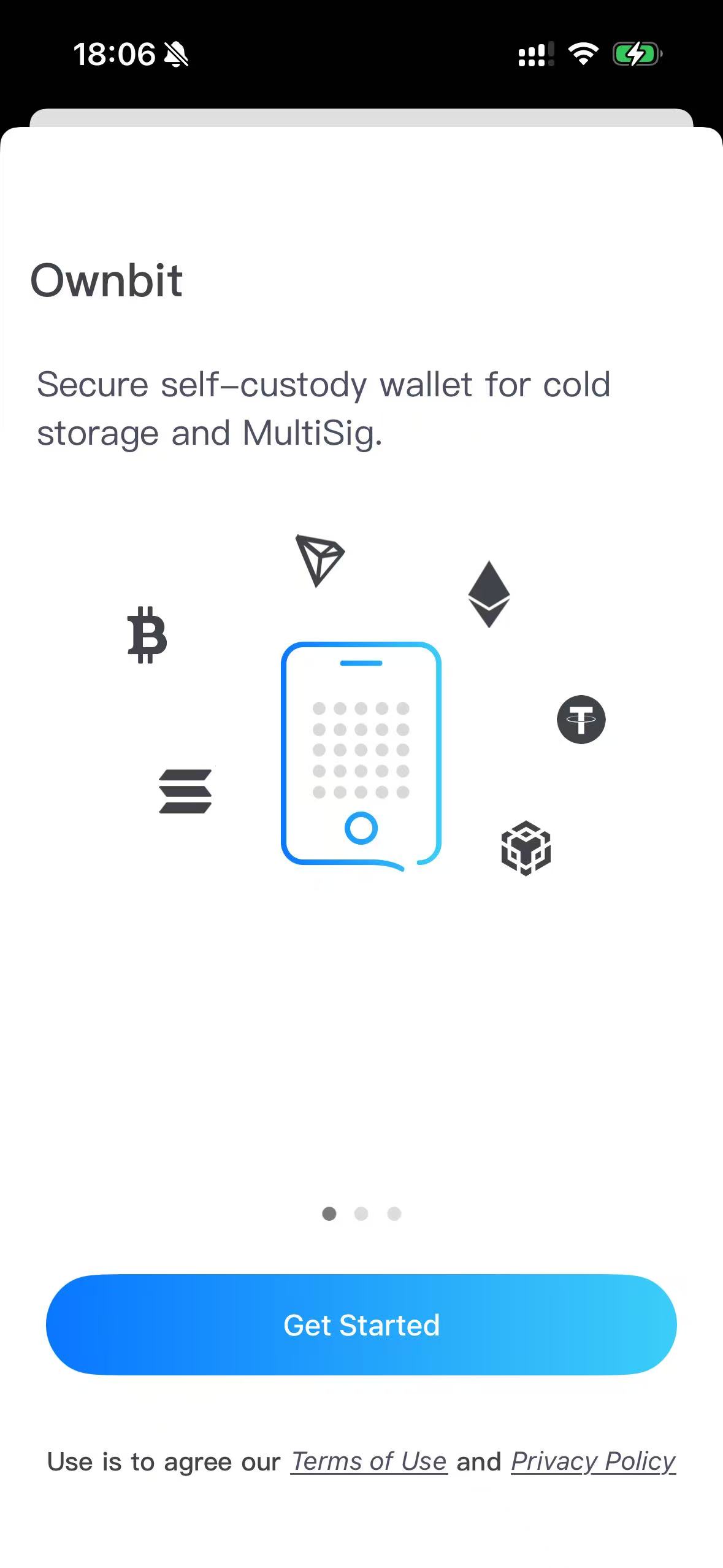
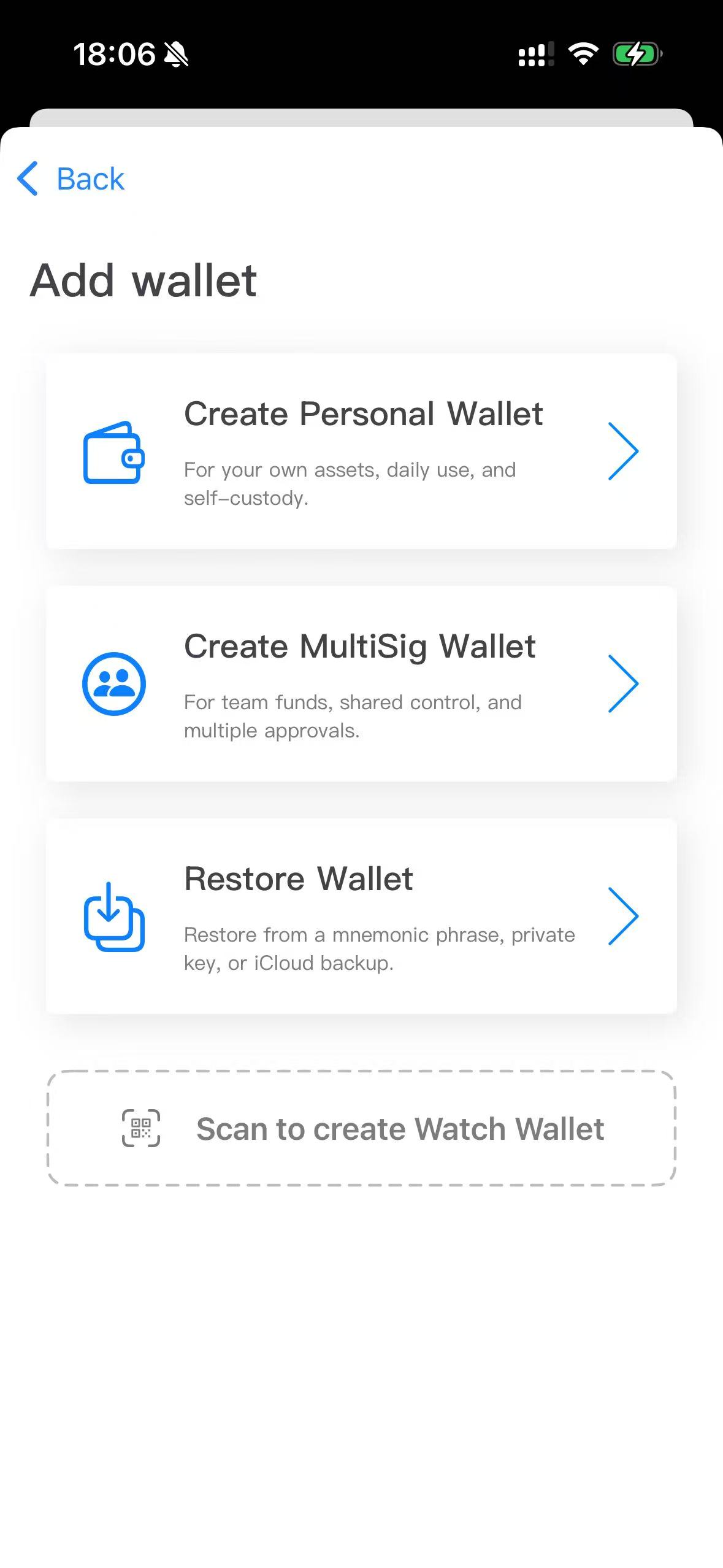
Tap Get Started, then on Add wallet choose Create Personal Wallet (or Create MultiSig Wallet for a MultiSig cold wallet).
Take the phone offline
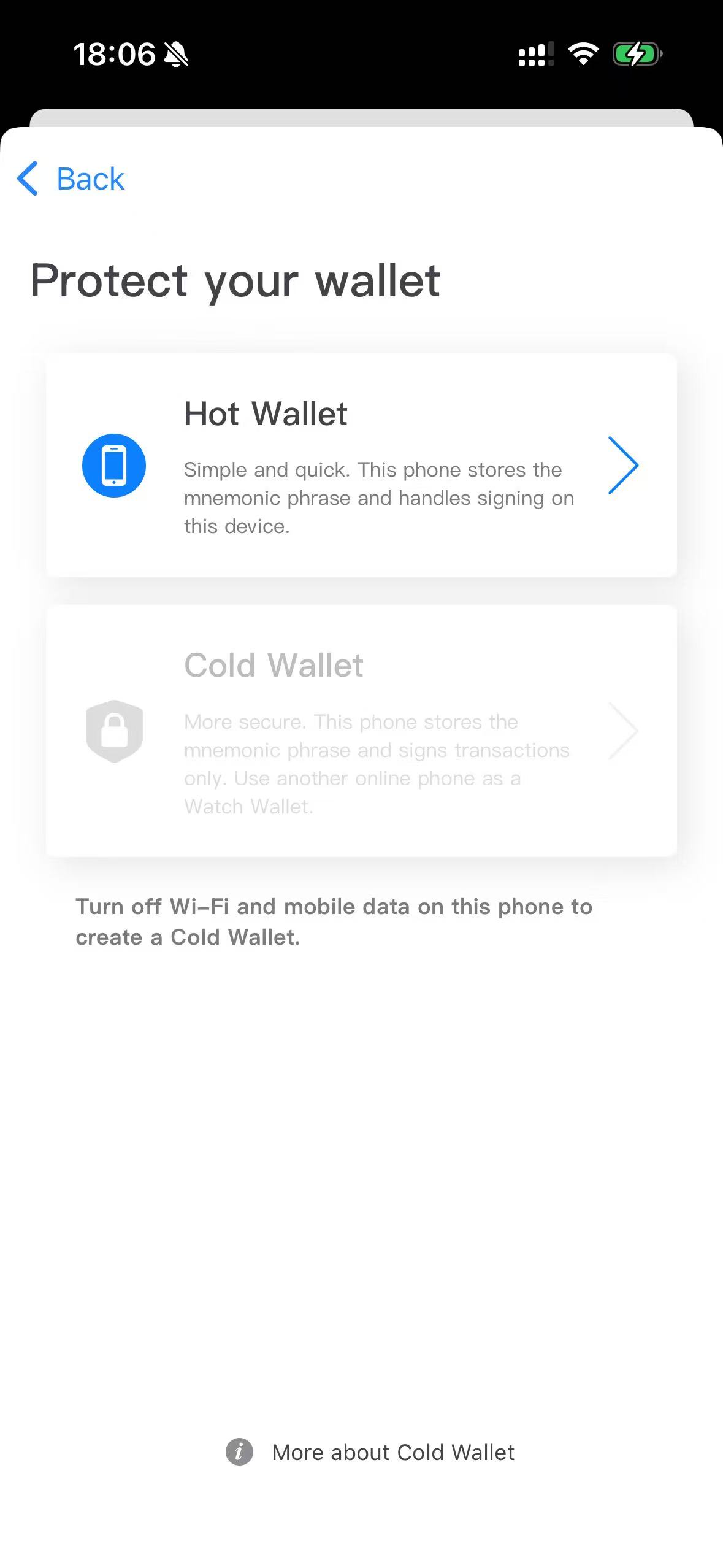
On Protect your wallet, Cold Wallet is greyed out while online. Turn off Wi-Fi and mobile data (or enable Airplane Mode).
Select Cold Wallet
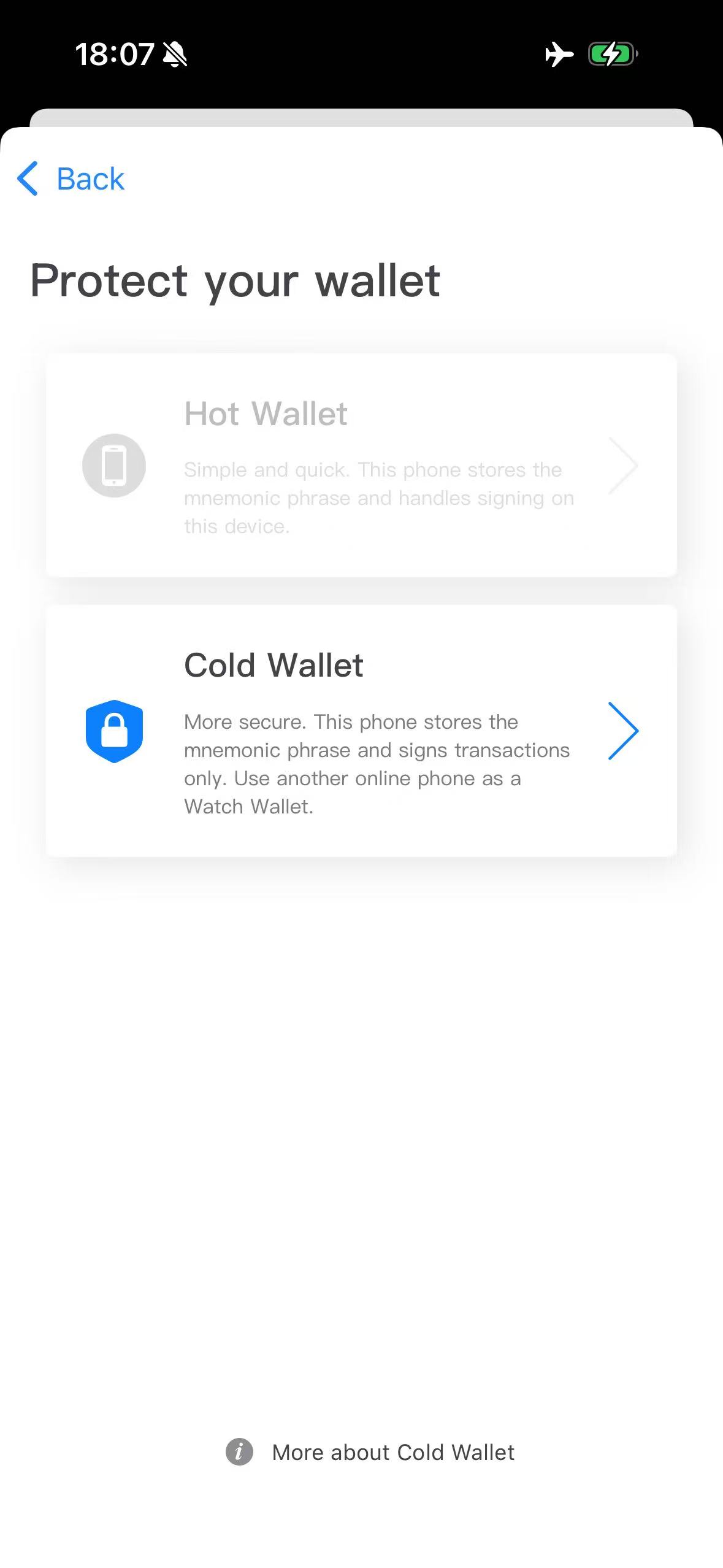
Once offline, the Cold Wallet option unlocks. Select it to continue.
Choose the mnemonic length and finish
Select 12 or 24 words; Ownbit generates the Cold Wallet ID, then enable the mainnet coins you need.
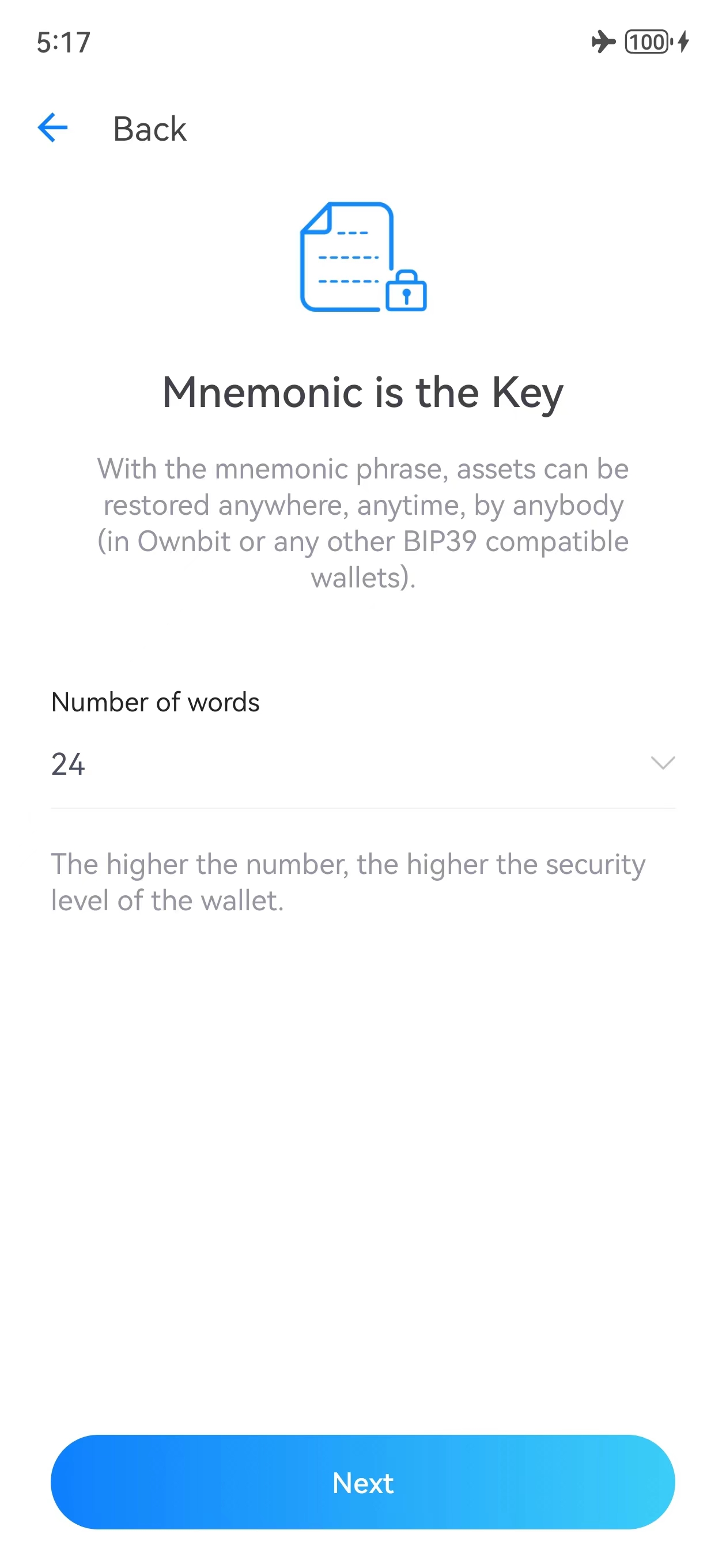
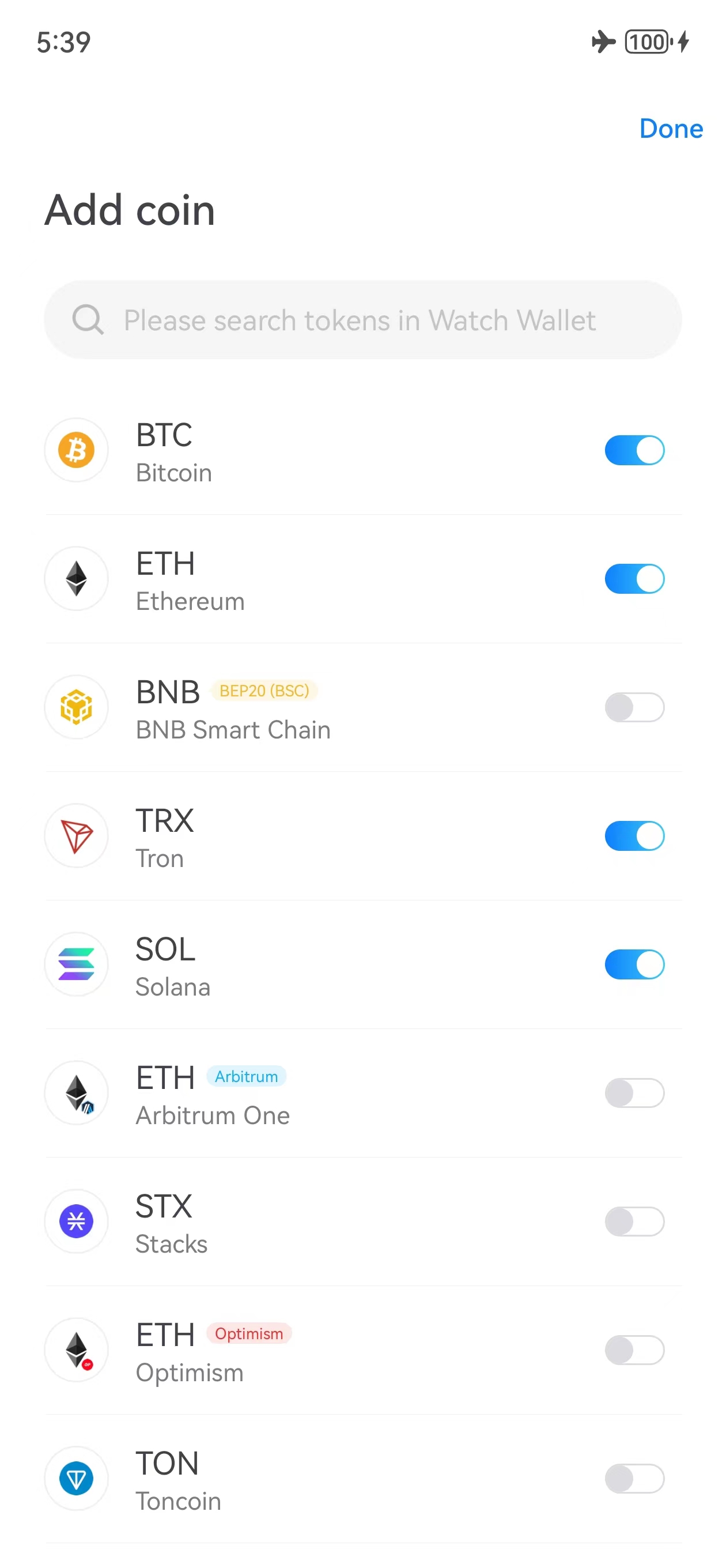
Write down the Cold Wallet's mnemonic and store it safely offline. If the phone is lost and you don't have the mnemonic, the assets cannot be recovered.
Pair the watch-only wallet
Show the Watch Wallet QR on the cold phone
In the cold wallet, tap Setup Watch Wallet to display the pairing QR. Switch the QR type to add extra coins if needed.
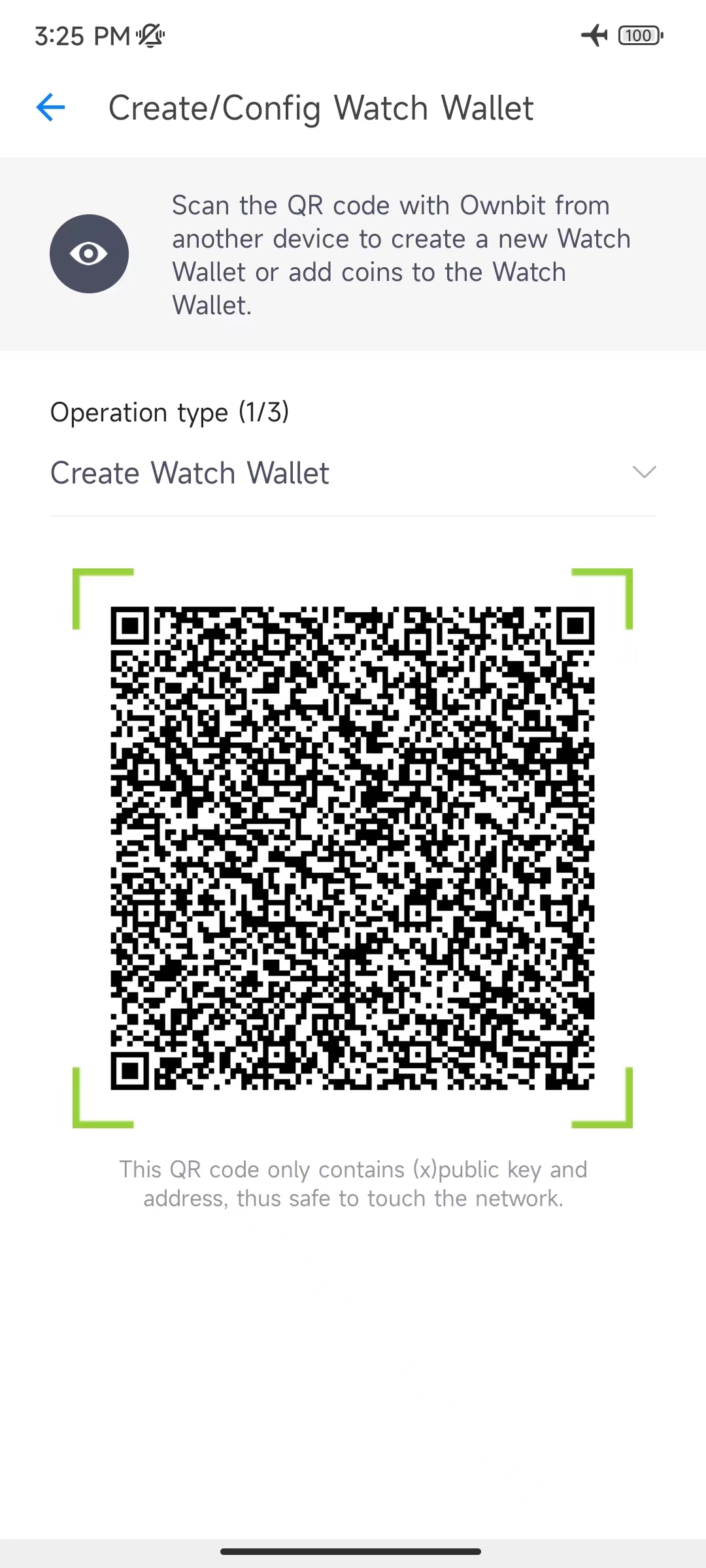
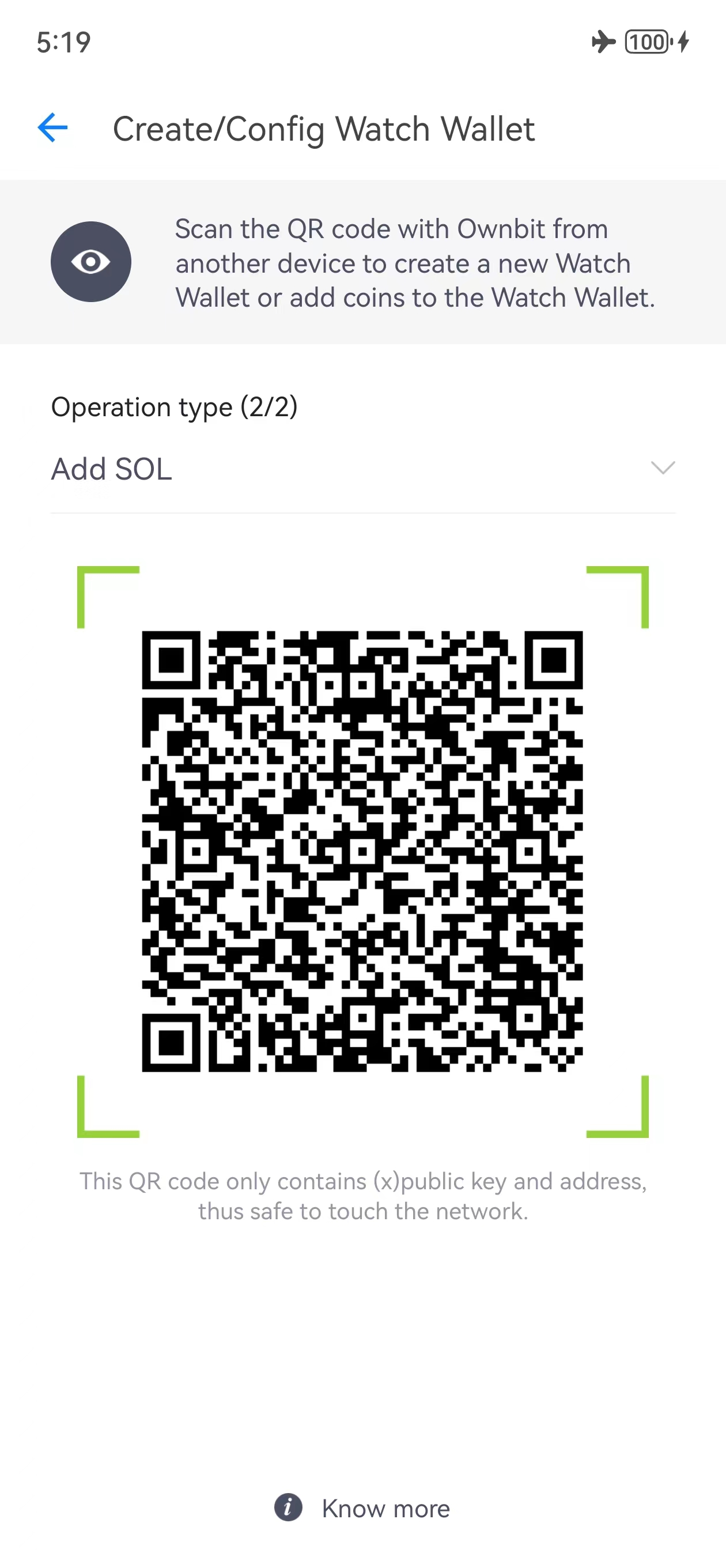
Scan on the online phone
On the online phone open Add wallet → Scan to create Watch Wallet, then scan the QR codes to create the watch wallet and add coins.
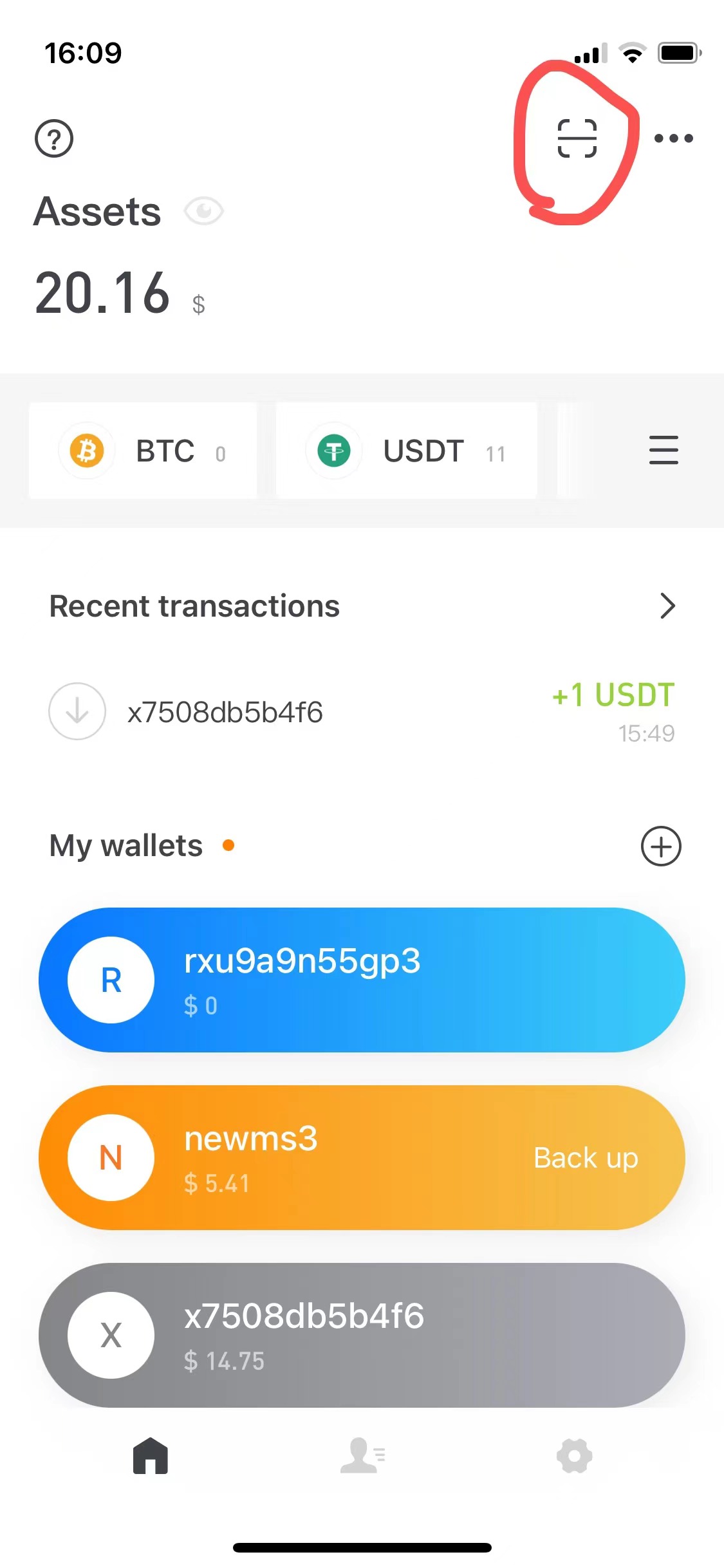
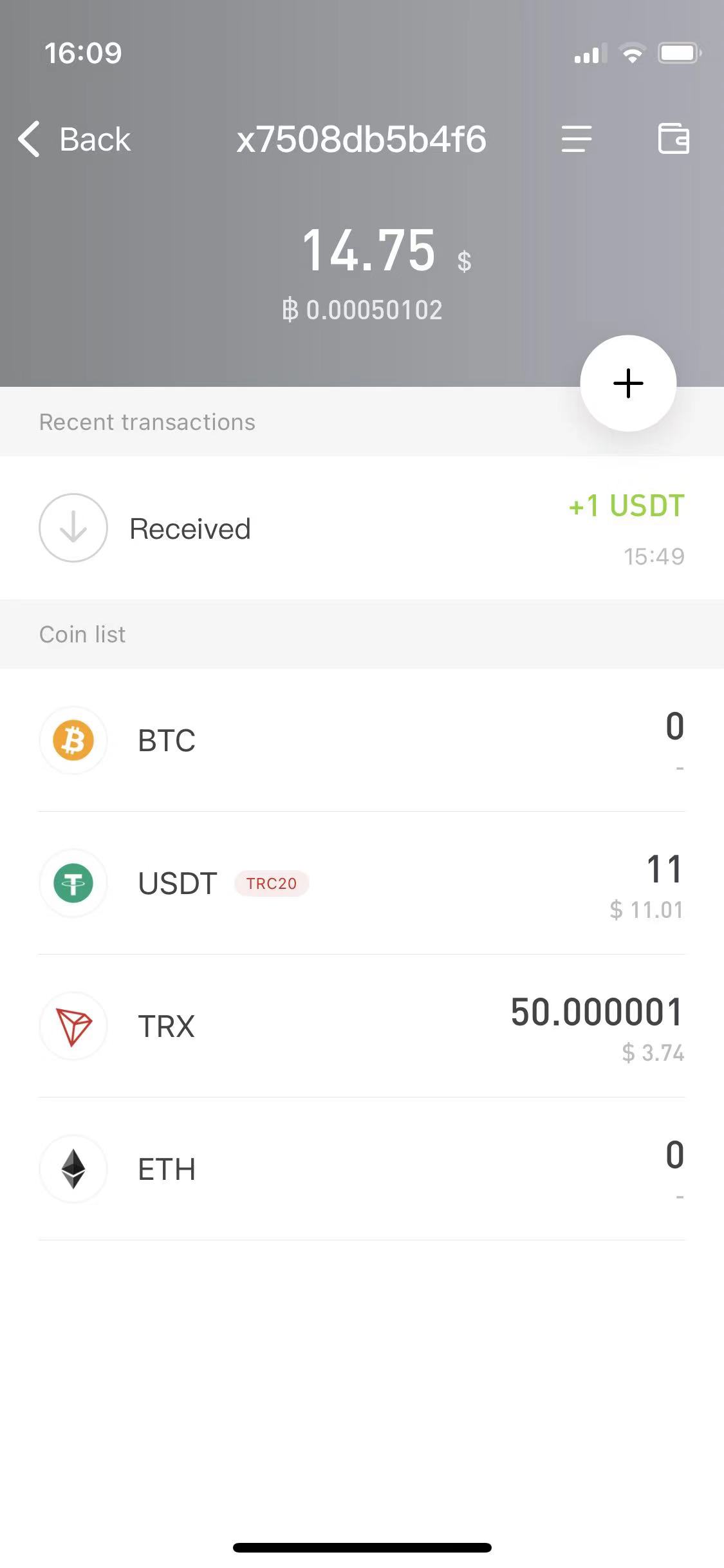
The cold wallet and watch wallet show the same receive address. The watch wallet holds public keys only and cannot sign.
Send a transaction by QR
Start on the watch wallet
Enter the recipient, amount and details, then confirm. A QR code to be signed appears.
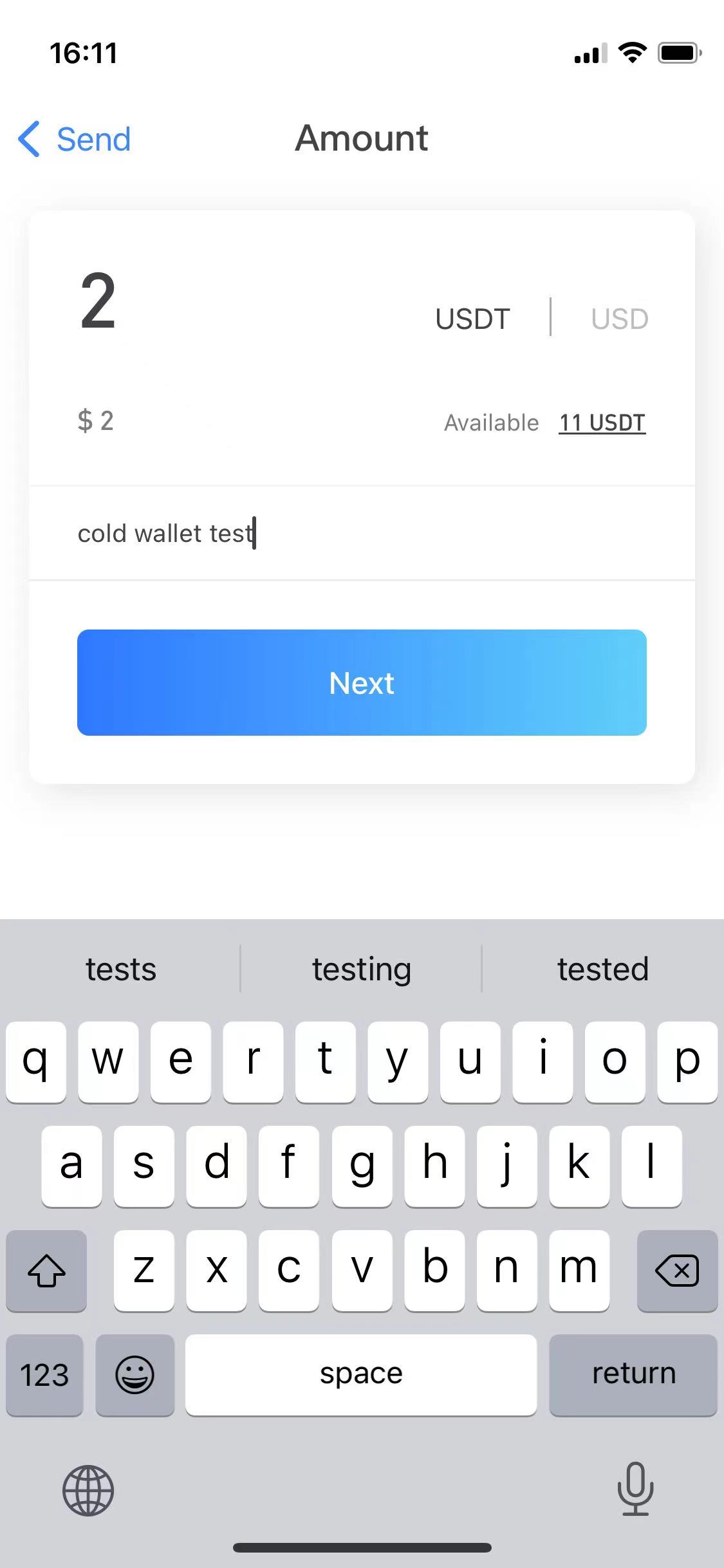
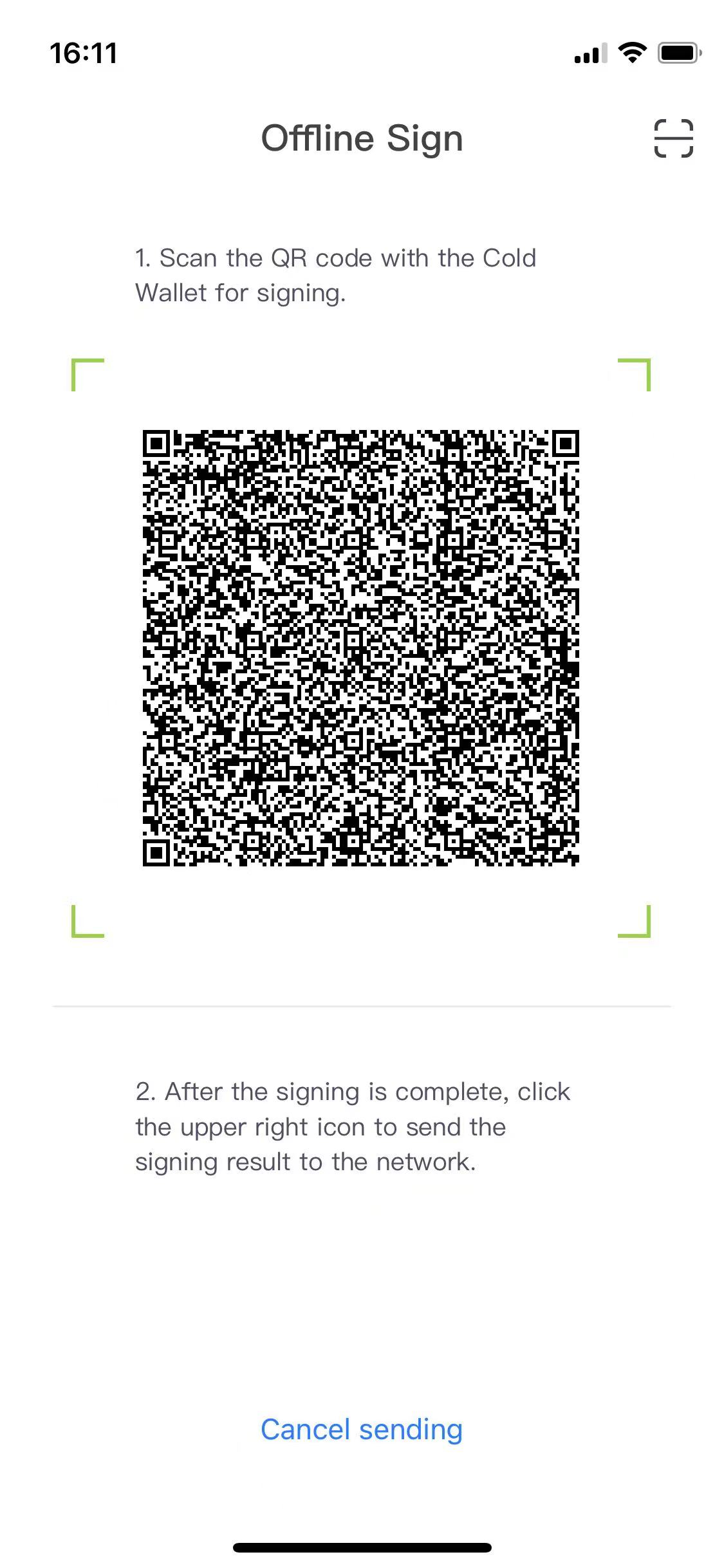
Scan and sign on the cold wallet
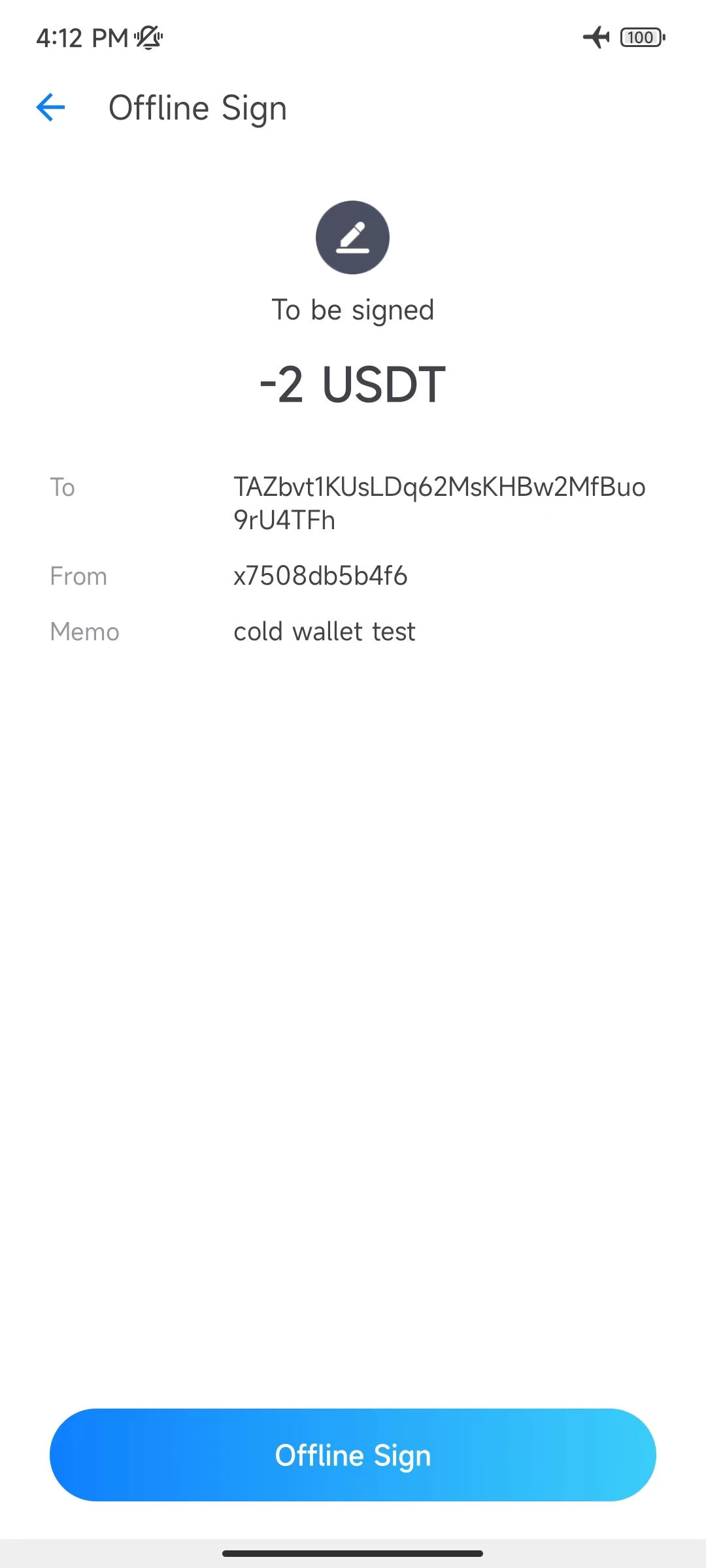
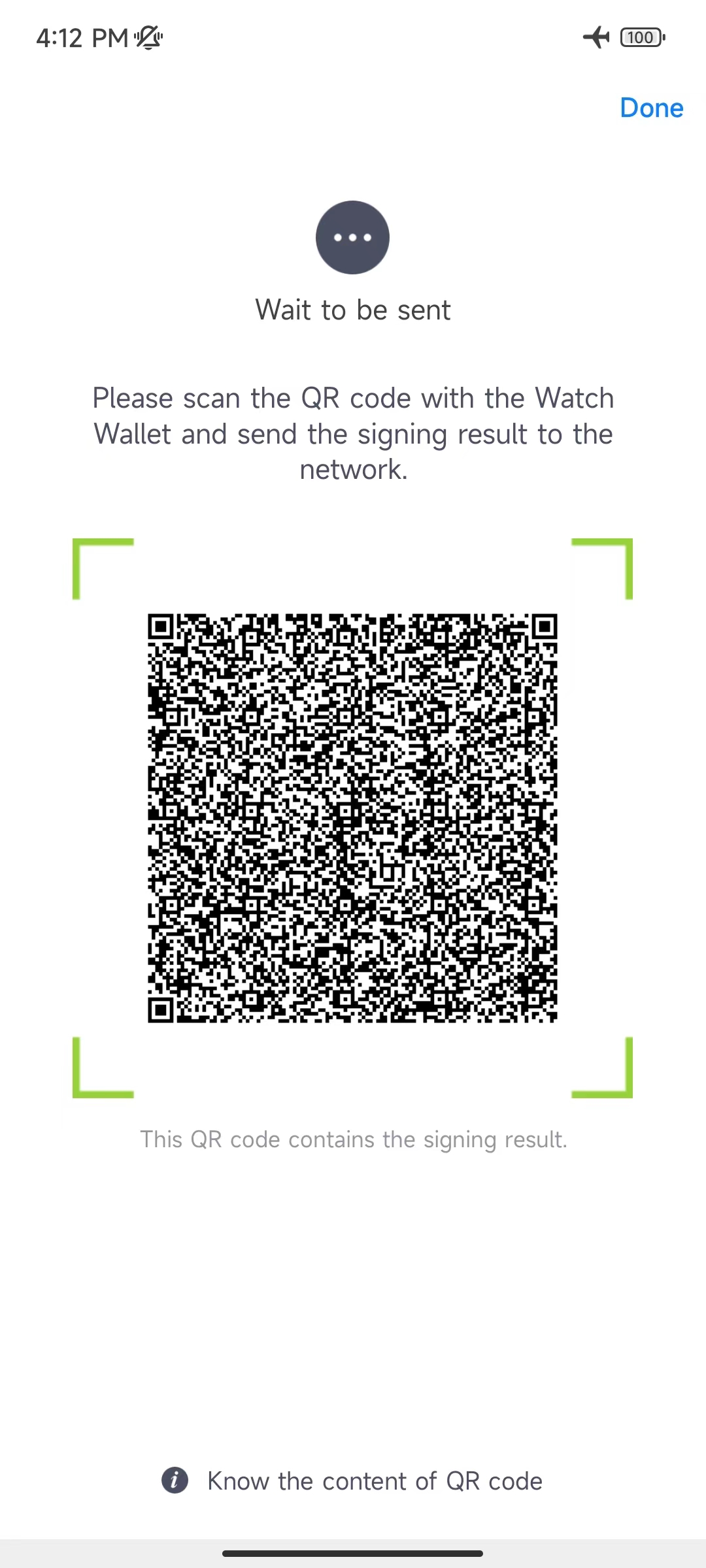
Use the offline phone to scan that QR, enter the cold-wallet password to sign; a signed-result QR pops up.
Broadcast from the watch wallet
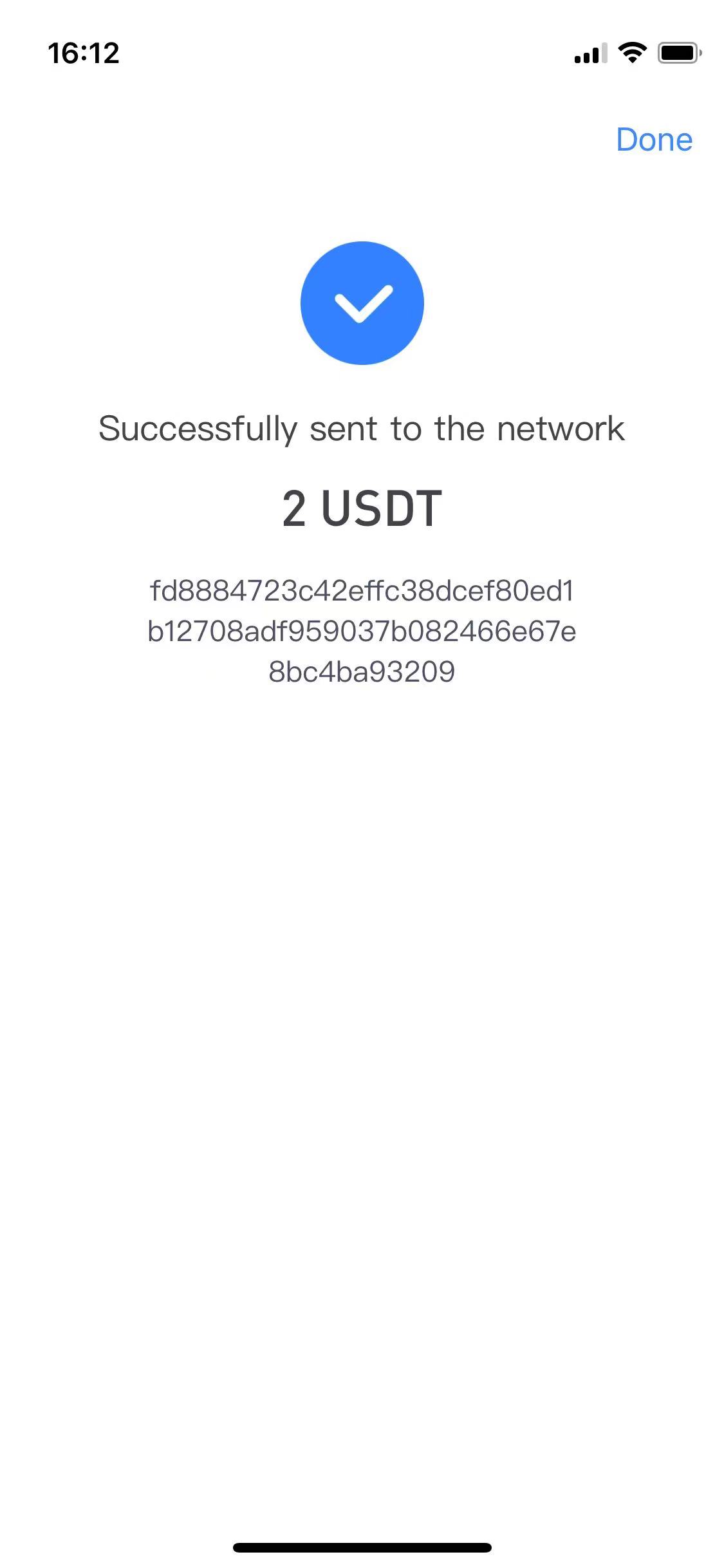
Scan the signed-result QR with the watch wallet to broadcast to the network. The transaction then appears in your history.
Updating and troubleshooting
- Updating the cold wallet: because it's offline it can't update over the network. Back up the mnemonic → delete Ownbit → go online and install the latest Ownbit → go offline and re-import the mnemonic.
- QR too large to scan: with UTXO coins (BTC, DOGE, LTC…) a transaction using many UTXOs can make the QR too big. Lower the amount, or use Customize UTXO on the watch wallet to pick fewer UTXOs.
Frequently asked questions
Do I need two phones for a cold wallet?
Yes — one permanently offline signer and one online watch-only wallet. The offline phone can be an inexpensive spare; it never needs a SIM or network.
Why didn't the recipient's coins show up?
Usually the cold wallet was set up without pairing a watch wallet. You need the second online phone as the watch wallet to see balances. If you only have one phone, back up the mnemonic, delete the wallet, and re-import it as a hot wallet.
How do I update an offline cold wallet?
Back up the mnemonic, delete the app, reinstall the latest Ownbit while online, then go offline and re-import the mnemonic.
Last updated:
Download Ownbit
Install the app, then set up a cold wallet or MultiSig for the setup you need.